Complex Gesture Testing Made Easy With HeadSpin Mini Remote

Mini Remote lets teams mirror and manually control real mobile devices directly from their browser or on a handheld device by scanning a QR code and using a URL. QA teams can perform manual testing for key user journeys and complex gestures like tap, swipe, pinch, zoom, and more without needing to set up a physical test lab.

Multiple Ways to Access the HeadSpin Mini Remote

Testing teams can access Mini Remote via the HeadSpin dashboard with an active account and device access.

Scan a QR Code

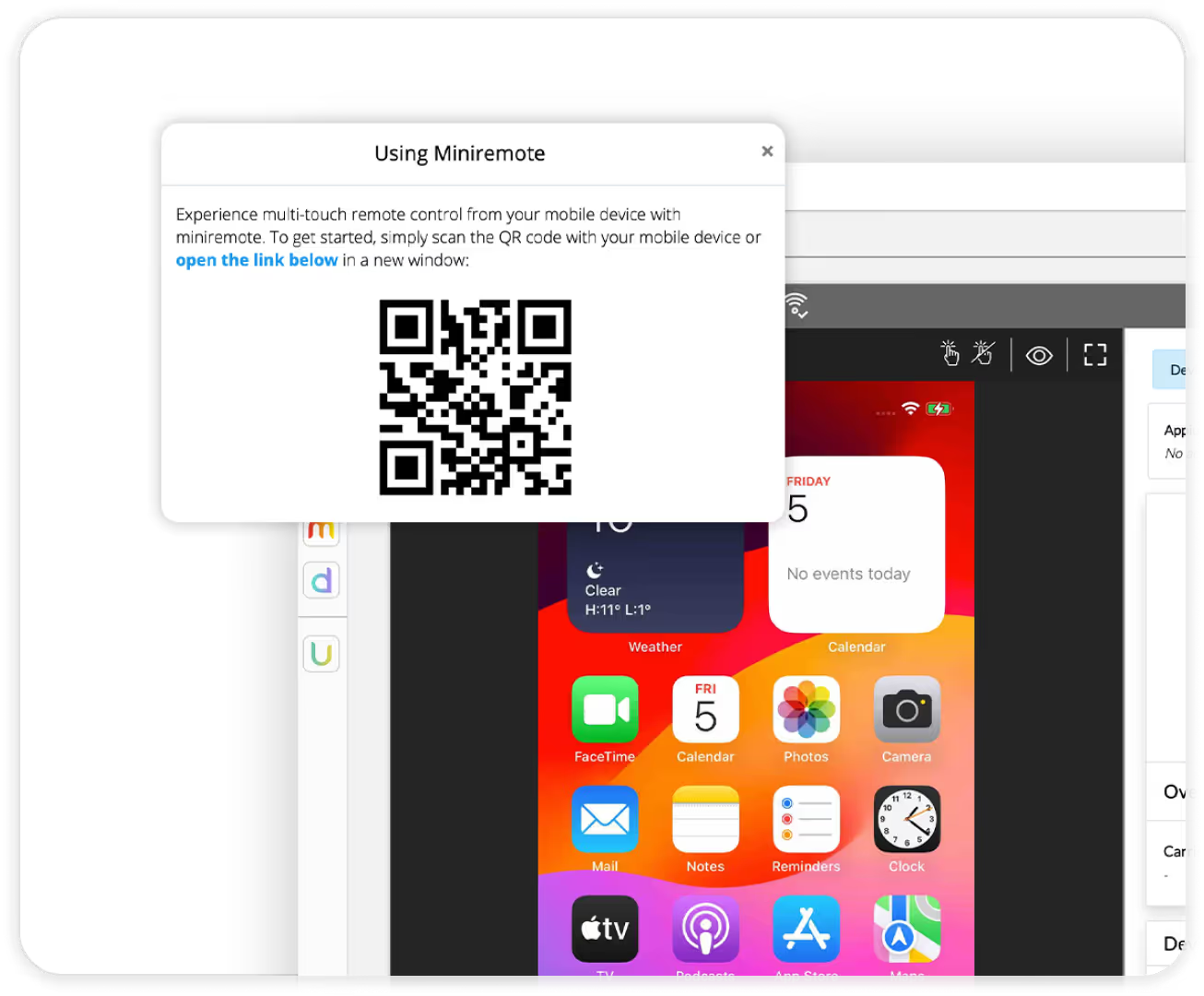
Access the QR by clicking on the upper left corner of your remote control view and scan it using your phone or tablet to open the device in your own mobile browser.

  • Your device becomes the controller, allowing you to interact with the remote device using taps, swipes, and multitouch gestures.

Access from a Direct Link

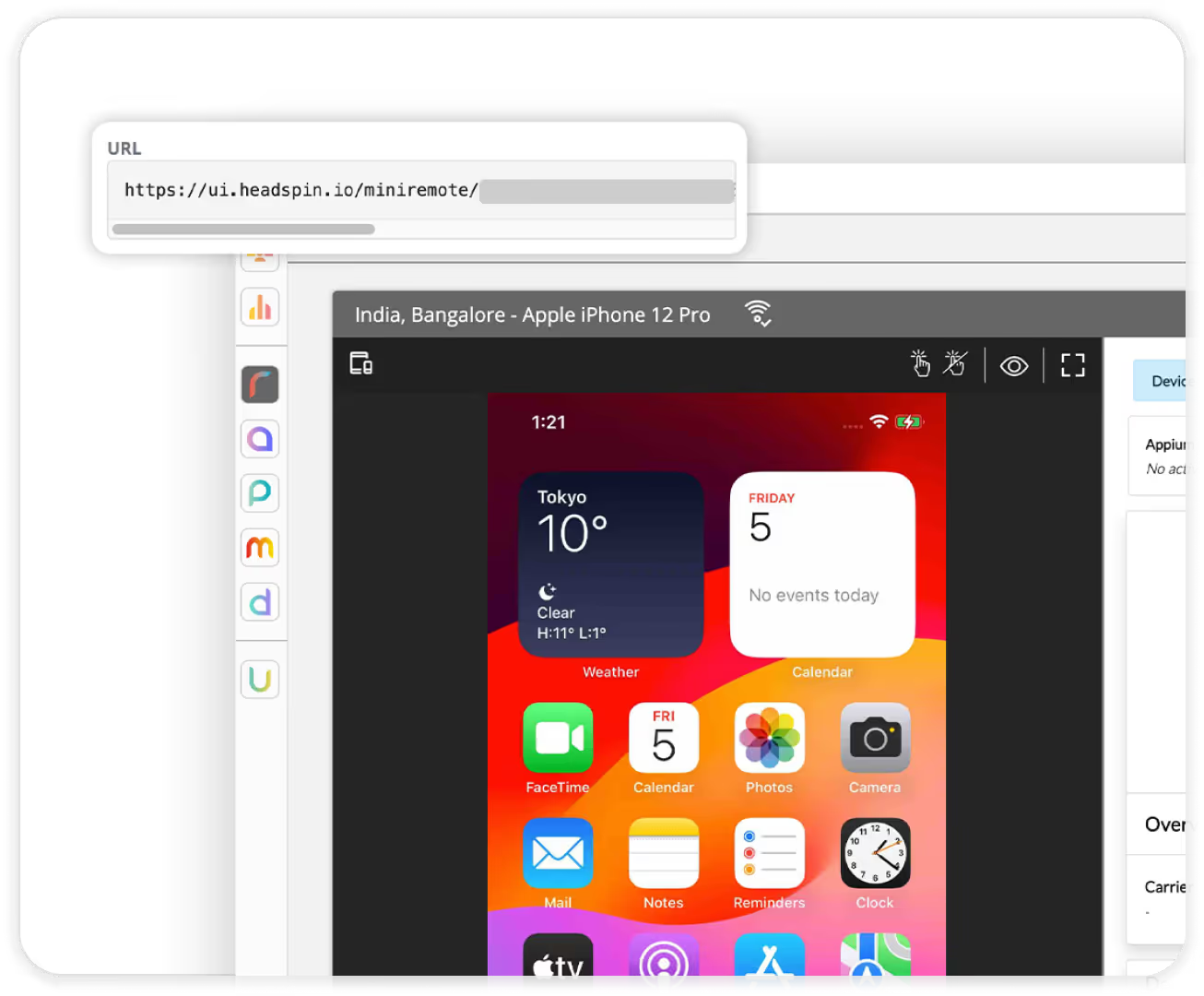
Teams can also open Mini Remote by using a URL, which can be accessed just below the QR code. This provides an enlarged view of the device in a separate tab.

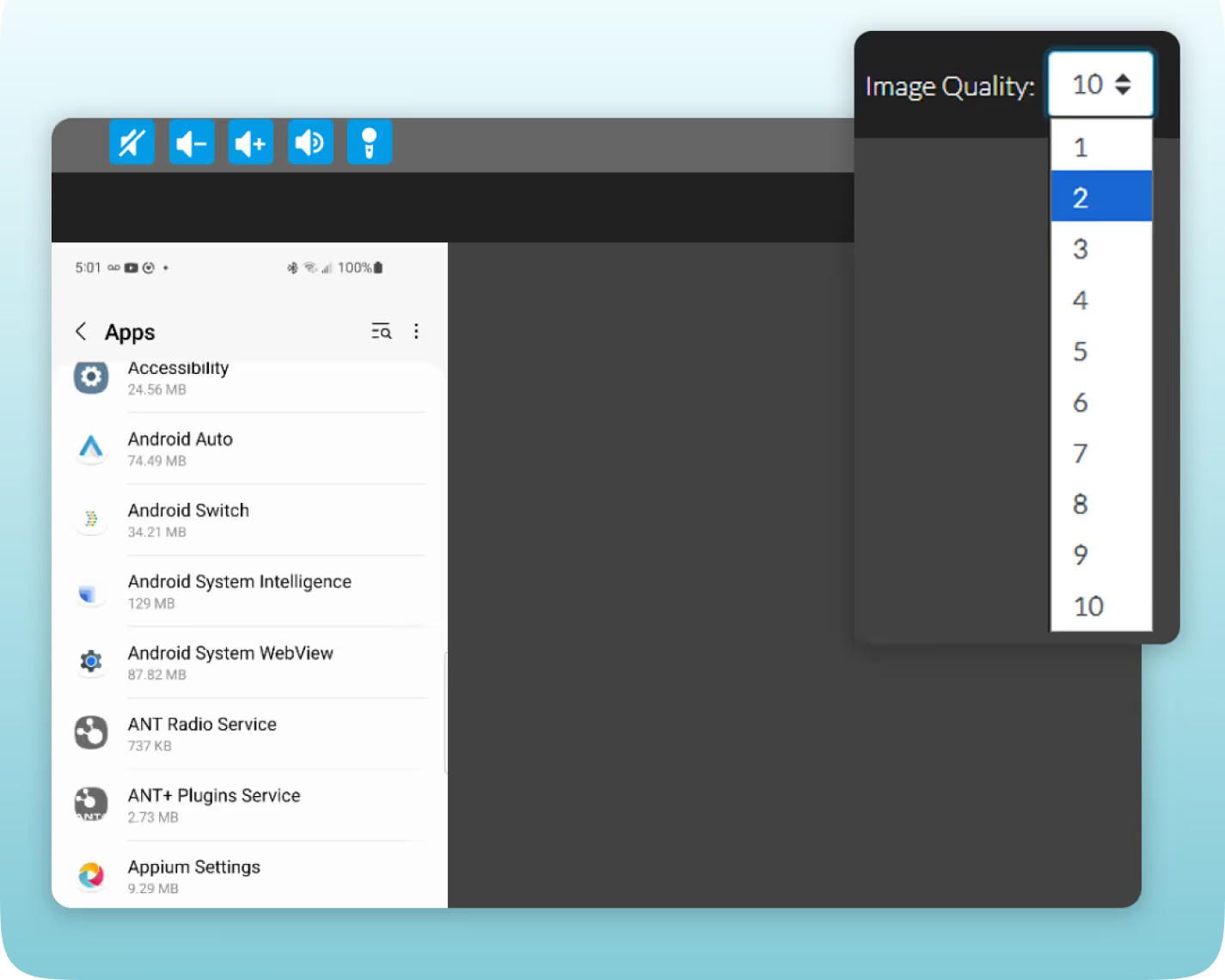
  • The interface includes buttons for muting, volume adjustment, voice call speaker access, and microphone enabling.
  • The URL can be shared with teammates for quick access without navigating through the HeadSpin dashboard.

How Mini Remote Fits Testing Workflows

Perform multitouch gestures

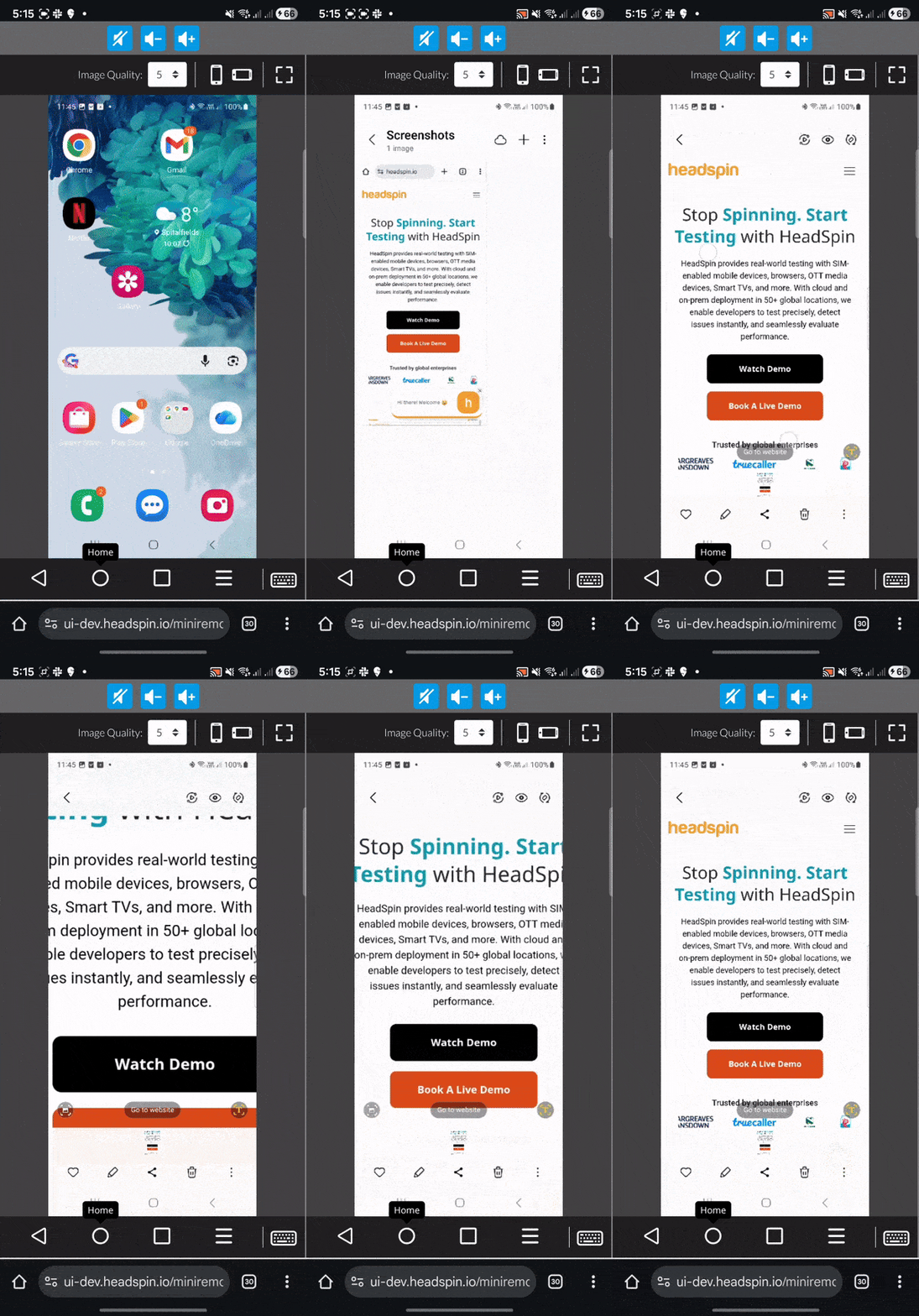
Testing multitouch on a browser usually means recreating gestures using mouse movements. With Mini Remote, you can use your own phone to perform real two-finger actions like pinch-to-zoom, tap, swipe, and scroll, replicating real user interactions more accurately

Test device interactions and orientations

Ensure your app works when users rotate their screens mid-task, switch between different virtual keyboard types, or use microphones and speakers. Mini Remote lets teams perform these checks directly on handheld devices, offering a more realistic experience than testing from platform dashboards.

Copy text and error codes from devices

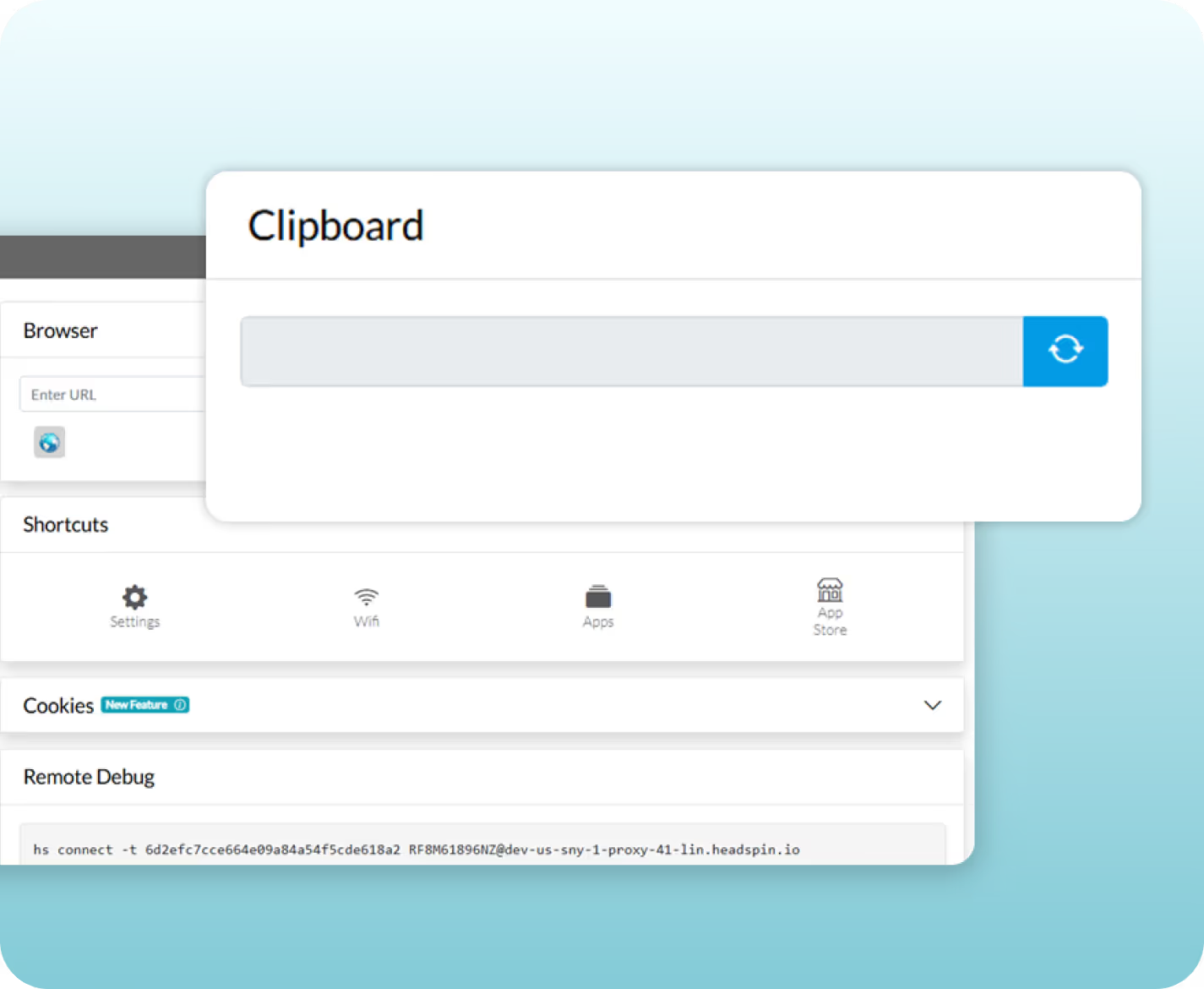
Teams can copy exact error messages, stack traces, or device information into JIRA tickets or development tools. This speeds up bug reporting and reduces errors when documenting issues.
Use keyboard shortcuts (Ctrl + C or Cmd + C) to copy any text visible on the remote Android device screen directly to your computer's clipboard.

Adjust image quality and audio settings

Control image quality on a 1-10 scale to match your network speed and testing needs. Teams can lower settings to prevent lag during gesture testing on slower connections, while higher settings provide crystal clear visuals for detailed UI inspection.
Increase/Decrease the device volume to test audio features like notifications and media playback properly.

Struggling with gesture testing remotely? Book a Call.

Any questions?
We got you.

Easily reproduce and resolve high-priority bugs across client-server communications.
More FAQ?

Q1. Can we use Appium Inspector on Mini Remote?

Q2. Does Mini Remote support app installation during the session?

Ready to See the Difference?
Let’s Connect!