Access Every Detail of Your Test Sessions with HeadSpin Waterfall UI

The HeadSpin Waterfall UI provides teams with a complete view of test sessions by aligning screen recordings, network activity, and device performance data in a time series view. QA teams can easily spot performance bottlenecks with precision, isolate root causes, and accelerate debugging workflows.

Deep Dive into the Waterfall UI

Keep Session Context Clear with the Title Pane

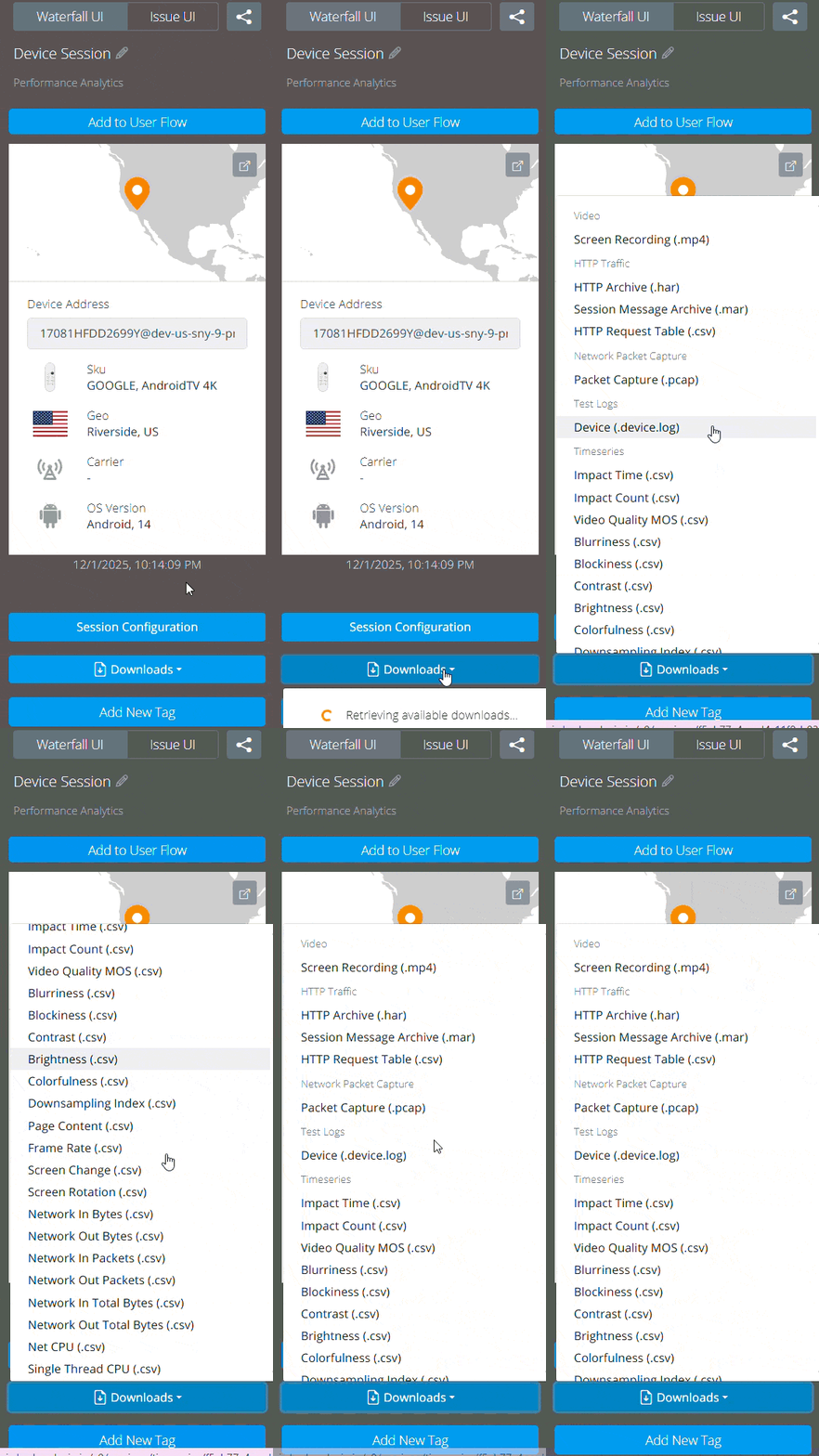
Get critical session metadata such as device type, location, and network with the Title Pane, making it easier to organize, revisit, and scale test efforts.

  • Teams can add custom tags to group sessions by use case or environment, and rename sessions with descriptions for better clarity
  • Download Session data such as screen recording, HTTP traffic, and Device & time-series logs for offline review or integration into internal systems, making it easier to organize, revisit, and scale test efforts.

Identify Network Traffic Bottlenecks with the Metrics Pane

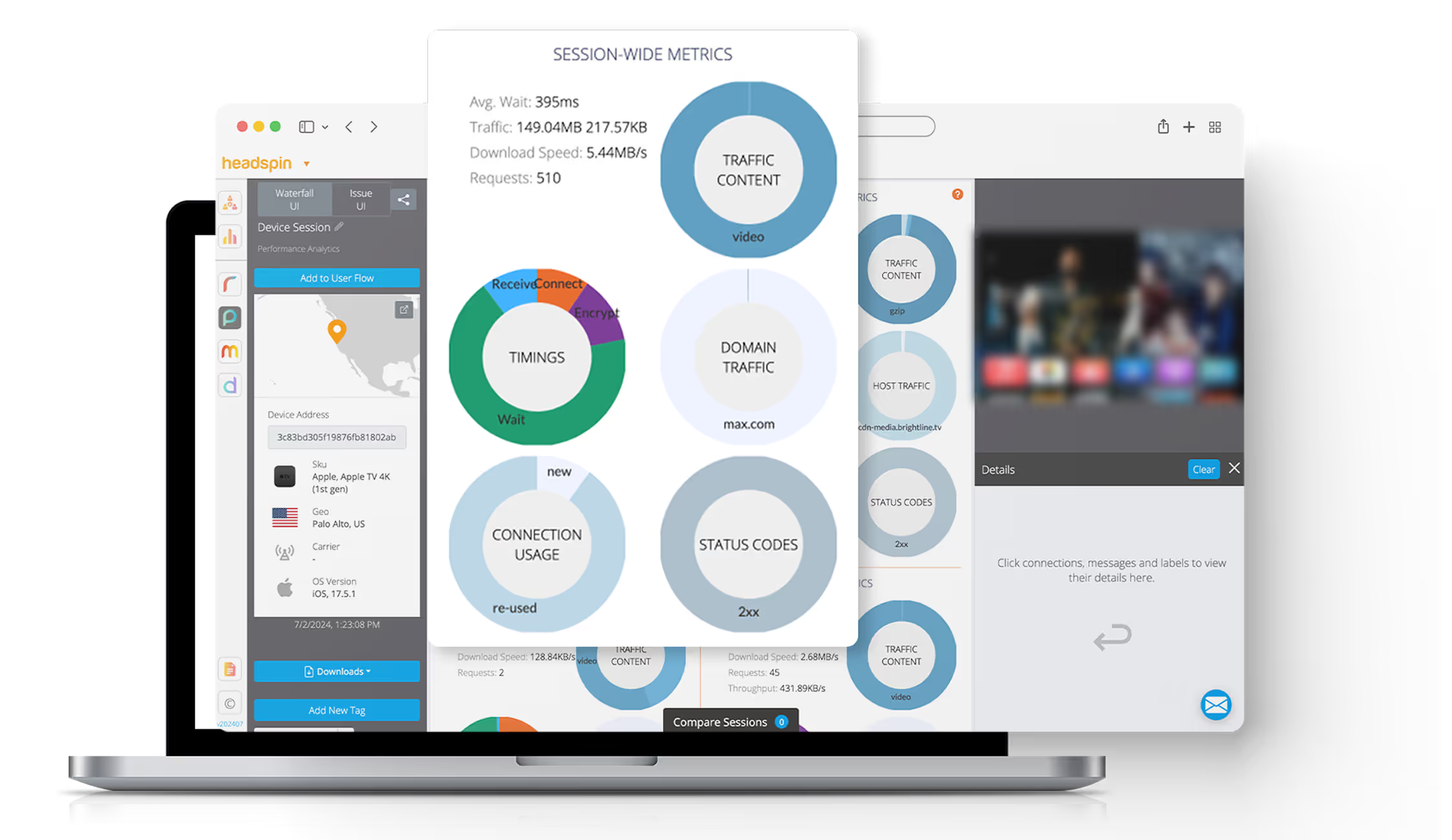
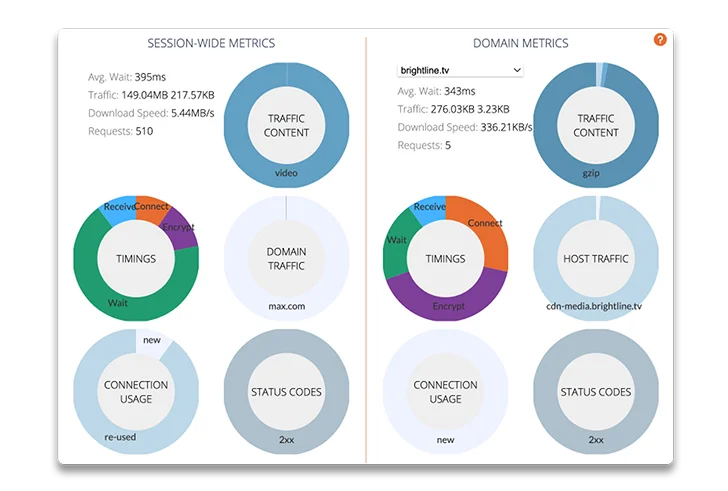
The Metrics Pane provides a complete breakdown of network traffic by session, domain, host, and burst, along with detailed timings for encrypt, connect, wait, send, and receive phases.

  • The pie charts present the types of data transferred, such as JSON, images, or headers, making it easier to identify large payloads or high-volume content types.
  • QA teams can leverage these insights to reduce load times and optimize network performance across different test conditions.
Highly secure HeadSpin PBox
Automation by Appium, Selenium, or any 3rd party testing tool

Replay the Full Session Timeline With Screen Recording Pane

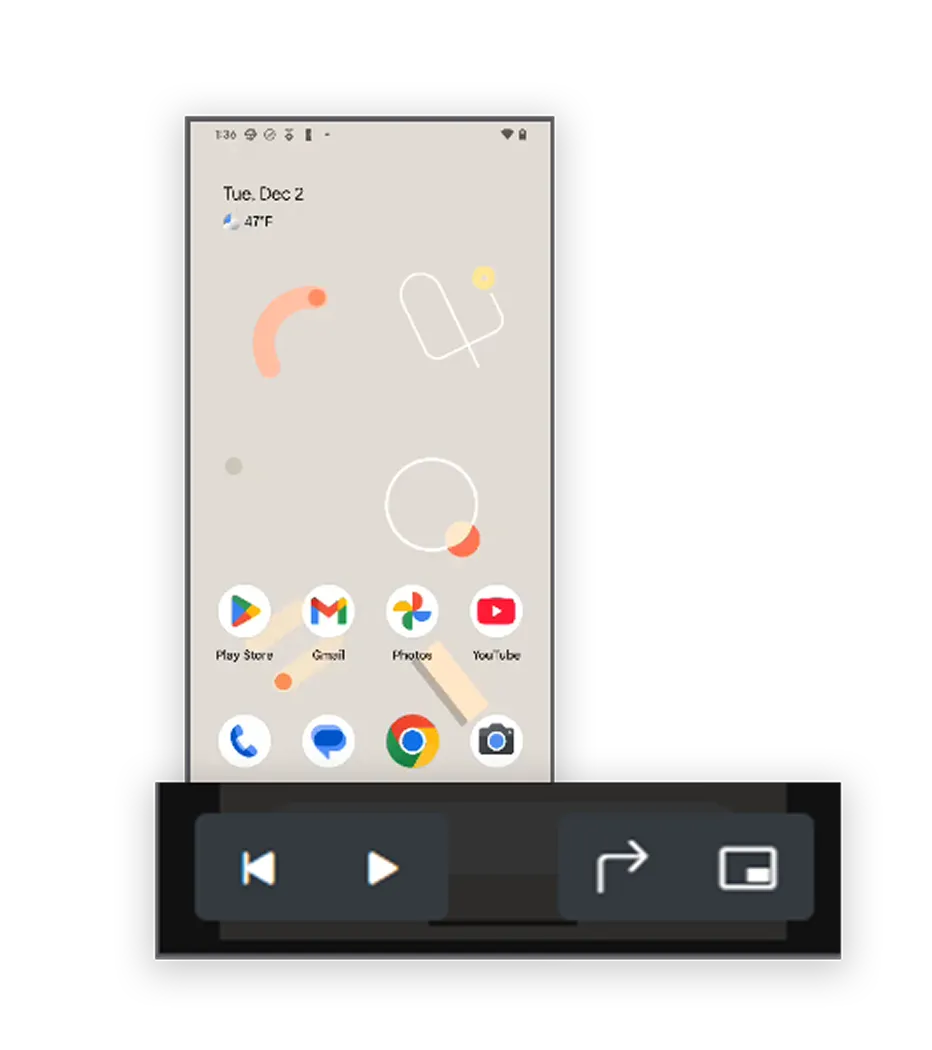
With the Screen Recording Pane, testing teams can replay the entire test session exactly as it played on the device.

  • The pane includes buttons to play, pause, rewind, rotate, pop in or out, and move the video anywhere on the dashboard, allowing flexible placement for easier viewing and analysis.
  • The recorded video stays synced with your metrics and timelines. When you scroll or select a time point, the video shows exactly what users saw at that moment, helping teams quickly verify unexpected behavior with clear visual proof.

Prioritize Critical Issues With Autogenerated ‘Issue Cards’

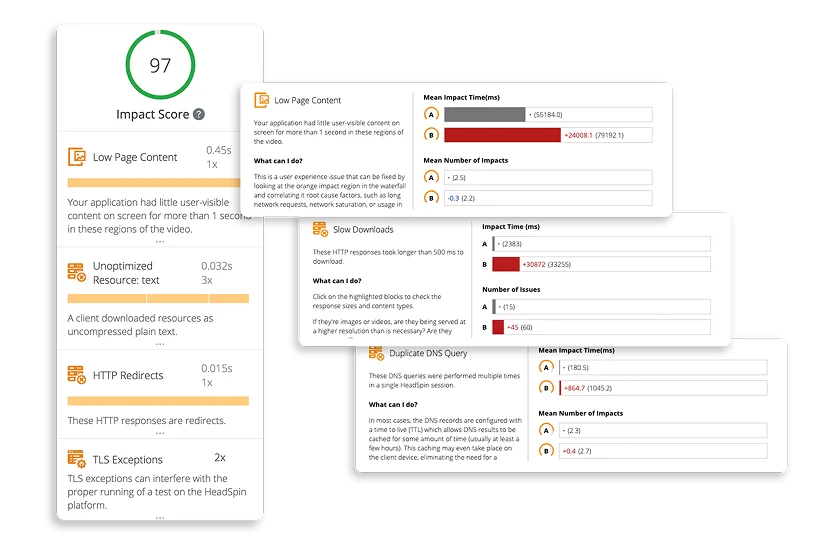
Based on industry benchmarks, HeadSpin automatically surfaces and ranks the most critical UX and performance issues of your app based on user impact.

  • The Issue pane displays your session’s impact score at the top. This score is calculated using the session’s total impact time combined with the session’s total duration.
  • Each card highlights issues, showing how often they occurred and how much time they added to the session. 
  • Testing teams can select the issue cards to see highlights in the time series pane for more precise tracing of issues.
  • Each card also includes a description of the issue
Highly secure HeadSpin PBox
Automation by Appium, Selenium, or any 3rd party testing tool

Correlate System Behavior with the Timeseries Pane

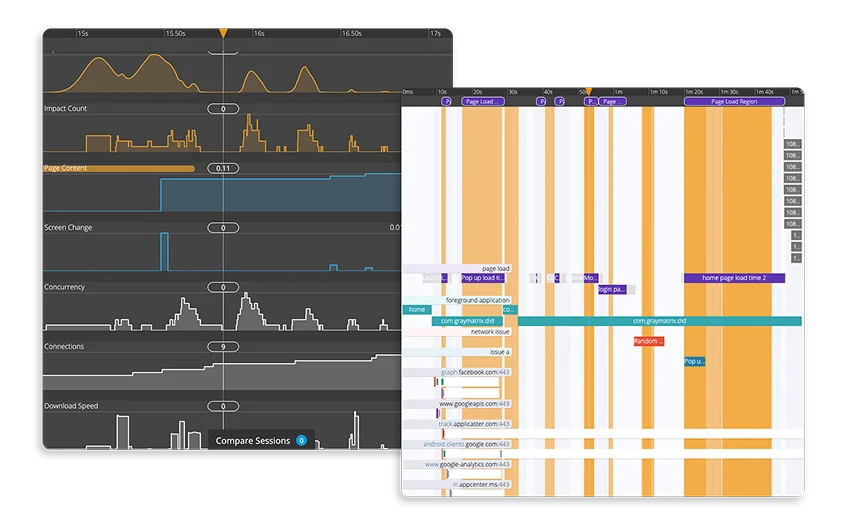
The Timeseries Pane provides a high-resolution view of how performance metrics evolve throughout a test session. Teams can track changes in CPU, memory, battery, network activity, and other key indicators mapped precisely to the session timeline. This helps detect patterns, identify regressions, and understand the impact of each event in real time.

  • Each metric appears as a separate graph, making it easier to spot patterns, spikes, or unexpected behavior during specific moments in the session.
  • Teams can zoom in/out, filter timelines, collapse or expand views, group, and choose which metrics to display, offering complete control over how session data is reviewed.

Dive Deep into Individual Events with the ‘Details Pane’

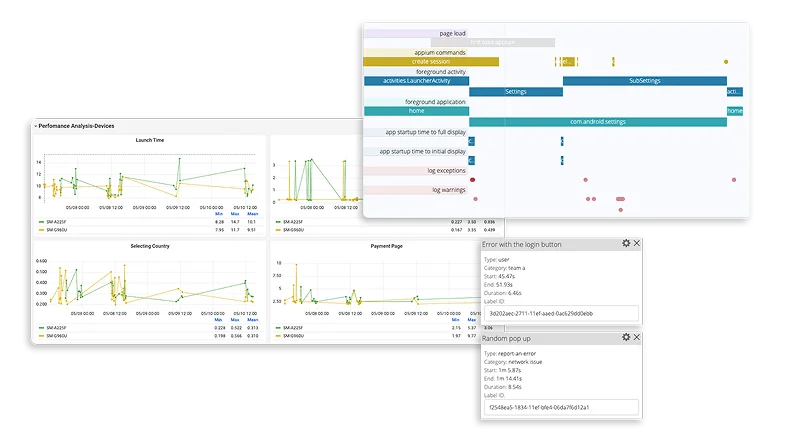
In the details pane, click any timeline event to immediately inspect detailed technical information for any performance issue within the same session.

  • Surface rich technical data, such as memory usage, DNS timing, request size, and more, for every event you select and view multiple cards.
  • Each event also includes a unique Label ID, which can be queried through APIs or other tools for deeper analysis.
Highly secure HeadSpin PBox
Automation by Appium, Selenium, or any 3rd party testing tool

Track Events and Network Activity With Session Labels

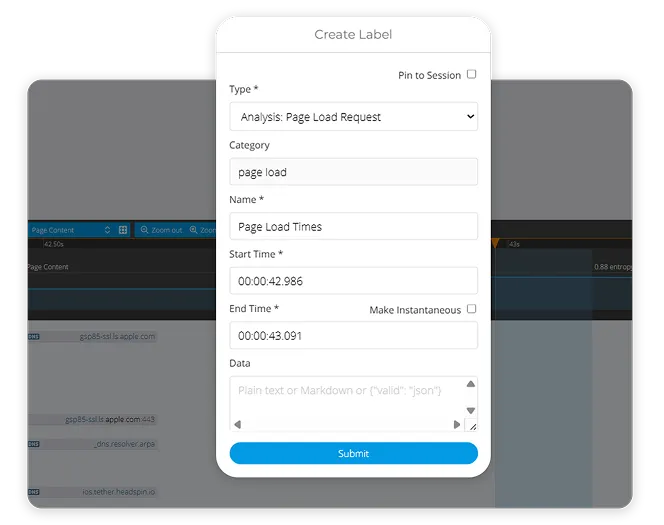
HeadSpin automatically labels important events like app launches and test commands, helping you pinpoint when something occurred.

  • Teams can add custom labels to highlight moments specific to their use case.
  • Teams can understand KPIs like page load times by creating a label and comparing it. If a customer wants to track how long the homepage takes to load, they can add a label to mark that event for easy reference.

Keep Session Context Clear with the Title Pane

Get critical session metadata such as device type, location, and network with the Title Pane, making it easier to organize, revisit, and scale test efforts.

  • Teams can add custom tags to group sessions by use case or environment, and rename sessions with descriptions for better clarity
  • Download Session data such as screen recording, HTTP traffic, and Device & time-series logs for offline review or integration into internal systems, making it easier to organize, revisit, and scale test efforts.
Highly secure HeadSpin PBox

Identify Network Traffic Bottlenecks with the Metrics Pane

The Metrics Pane provides a complete breakdown of network traffic by session, domain, host, and burst, along with detailed timings for encrypt, connect, wait, send, and receive phases.

  • The pie charts present the types of data transferred, such as JSON, images, or headers, making it easier to identify large payloads or high-volume content types.
  • QA teams can leverage these insights to reduce load times and optimize network performance across different test conditions.
Automation by Appium, Selenium, or any 3rd party testing tool

Replay the Full Session Timeline With Screen Recording Pane

With the Screen Recording Pane, testing teams can replay the entire test session exactly as it played on the device.

  • The pane includes buttons to play, pause, rewind, rotate, pop in or out, and move the video anywhere on the dashboard, allowing flexible placement for easier viewing and analysis.
  • The recorded video stays synced with your metrics and timelines. When you scroll or select a time point, the video shows exactly what users saw at that moment, helping teams quickly verify unexpected behavior with clear visual proof.
Highly secure HeadSpin PBox

Prioritize Critical Issues With Autogenerated ‘Issue Cards’

Based on industry benchmarks, HeadSpin automatically surfaces and ranks the most critical UX and performance issues of your app based on user impact.

  • The Issue pane displays your session’s impact score at the top. This score is calculated using the session’s total impact time combined with the session’s total duration.
  • Each card highlights issues, showing how often they occurred and how much time they added to the session. 
  • Testing teams can select the issue cards to see highlights in the time series pane for more precise tracing of issues.
  • Each card also includes a description of the issue
Automation by Appium, Selenium, or any 3rd party testing tool

Correlate System Behavior with the Timeseries Pane

The Timeseries Pane provides a high-resolution view of how performance metrics evolve throughout a test session. Teams can track changes in CPU, memory, battery, network activity, and other key indicators mapped precisely to the session timeline. This helps detect patterns, identify regressions, and understand the impact of each event in real time.

  • Each metric appears as a separate graph, making it easier to spot patterns, spikes, or unexpected behavior during specific moments in the session.
  • Teams can zoom in/out, filter timelines, collapse or expand views, group, and choose which metrics to display, offering complete control over how session data is reviewed.
Highly secure HeadSpin PBox

Dive Deep into Individual Events with the ‘Details Pane’

In the details pane, click any timeline event to immediately inspect detailed technical information for any performance issue within the same session.

  • Surface rich technical data, such as memory usage, DNS timing, request size, and more, for every event you select and view multiple cards.
  • Each event also includes a unique Label ID, which can be queried through APIs or other tools for deeper analysis.
Multiple devices testing

Track Events and Network Activity With Session Labels

HeadSpin automatically labels important events like app launches and test commands, helping you pinpoint when something occurred.

  • Teams can add custom labels to highlight moments specific to their use case.
  • Teams can understand KPIs like page load times by creating a label and comparing it. If a customer wants to track how long the homepage takes to load, they can add a label to mark that event for easy reference.

Make Performance Analysis a Breeze with the Waterfall UI

Accelerated RCA
affordable
Timelines, metrics, and issue cards connect performance changes to exact events or network calls, allowing teams to trace problems directly to their root cause without trial and error.
Collaborative Decision-Making
affordable
Downloadable time series data, network logs, and issue reports can be shared across development, testing, and project teams, ensuring everyone works from the same data when planning fixes.
Data-Driven Insights
affordable
Breakdowns of traffic by session, domain, host, and burst, combined with content type analysis, highlight heavy payloads, inefficient requests, or bursts affecting performance.
Improved Fix Accuracy
affordable
Event-specific technical details such as DNS timings, retries, and memory usage provide details of system state at the moment of failure, helping teams apply targeted fixes.

Ready to See the Difference?
Let’s Connect!

Any questions?
We got you.

Easily reproduce and resolve high-priority bugs across client-server communications.
More FAQ?

Q1. How does Waterfall UI integrate with our existing QA workflow?

Q2. Can we analyze both mobile and web application sessions?

Ready to See the Difference?
Let’s Connect!