.png)


.png)


AI-Powered Key Takeaways


Table of Contents

What is GUI Testing?
GUI testing validates visual elements and user interactions of an application. It ensures that objects such as buttons, menus, icons, and dialog boxes function correctly and appear as expected across various screen resolutions and devices.
Testers simulate user actions like scrolling, typing, and clicking to ensure the UI responds correctly. The goal is to identify issues with the application's layout, functionality, or usability.
Key Goals:
- Ensure that UI elements are displayed and function correctly
- Validate application behaviour to user triggers
- Identify functional issues across platforms and screen sizes
Types of GUI Testing
GUI testing can be performed in several ways depending on the application, release cycle, risk level, and testing maturity. Here are the major types of GUI testing.
1. Manual GUI Testing
Manual GUI testing is performed by testers who interact with the application as real users would. They click buttons, fill out forms, scroll through pages, check layouts, validate messages, and confirm that the interface behaves as expected.
Manual GUI testing works well for exploratory testing, early design validation, usability checks, and areas where human judgment is important. For example, a tester can quickly judge whether a screen feels cluttered, whether a workflow is confusing, or whether a message sounds unclear.
However, manual testing can become slow and repetitive when teams need to validate the same interface across many devices, browsers, and builds.
2. Automated GUI Testing
Automated GUI testing uses scripts or automation frameworks to validate interface behavior. These tests simulate user actions such as clicking, typing, selecting options, navigating screens, and submitting forms.
Automated GUI testing is useful for repetitive flows such as login, registration, checkout, search, booking, payments, and account management. It helps teams run GUI regression testing faster and more consistently across releases.
Common automation use cases include:
- Validating buttons and links
- Checking form behavior
- Testing navigation flows
- Running cross-browser UI tests
- Verifying mobile app workflows
- Detecting UI regressions after code changes
3. Functional GUI Testing
Functional GUI testing verifies that visible interface elements function according to business requirements. For example, if a user enters the correct login credentials, the app should take them to the dashboard. If the user enters the wrong password, the app should show a clear error message.
This type of GUI testing focuses on action and response. The interface should not only look correct but also perform the intended function.
4. Visual GUI Testing
Visual GUI testing checks whether the interface looks correct. It focuses on layout, design consistency, spacing, colors, fonts, images, icons, and responsiveness.
Visual regression testing is a related technique where screenshots from a new build are compared against approved baselines to detect unintended visual changes. This is especially useful when teams release frequent UI updates.
5. Usability GUI Testing
Usability GUI testing checks how easy the application is to use. It focuses on clarity, navigation, readability, flow, and user satisfaction.
For example, a usability-focused GUI test may check whether users can find the checkout button easily, understand form labels, recover from errors, or complete a task without unnecessary steps.
6. Compatibility GUI Testing
Compatibility GUI testing validates whether the interface works consistently across different browsers, operating systems, devices, screen sizes, and resolutions. This is especially important for web and mobile applications because the same interface may render differently across Chrome, Safari, Firefox, Android, iOS, tablets, and desktop browsers.
7. Accessibility GUI Testing
Accessibility GUI testing checks whether the interface can be used by people with disabilities. It includes validating keyboard access, labels, color contrast, alt text, focus order, screen reader support, and more.
This type of testing is no longer optional for many teams. It improves usability for all users and helps reduce legal, compliance, and brand risks.
Limitations of GUI Testing
GUI testing is important, but it also comes with limitations. Teams should understand these challenges to build a practical testing strategy.
1. GUI Tests Can Be Fragile
Automated GUI tests can fail when the interface changes. A renamed button, an updated selector, a changed layout, or a modified page structure may break scripts, even when the application still works.
Leveraging platforms that use AI to capture the live state of an application. That way, the scripts self-heal and are always relevant. ACE by HeadSpin helps teams do this.
2. It Can Be Time-Consuming
Testing every screen, component, device, browser, and resolution manually is not practical. GUI testing can become slow when teams do not prioritize high-risk flows or use automation for repetitive checks.
3. Full Coverage Is Difficult
Modern applications have many states: logged-in users, logged-out users, different languages, different roles, dark mode, light mode, slow networks, expired sessions, empty states, error states, and payment failures. Covering every combination is difficult.
The goal should be risk-based coverage, not endless test cases.
4. Visual Differences Can Be Hard to Judge
Some visual differences are acceptable, while others are defects. For example, minor font rendering differences between browsers may not affect users, but a hidden CTA button does. Teams need clear visual testing rules to avoid false positives.
5. Lab Conditions May Not Reflect Real Users
Testing only on local machines, emulators, or ideal Wi-Fi conditions may miss issues that appear on real devices, older OS versions, low-end hardware, weak networks, or specific geographies. This is one of the biggest reasons teams need real device testing.
Best Practices for GUI Testing
A strong GUI testing strategy should combine clear planning, smart coverage, automation, and real-world validation.
1. Start With Critical User Journeys
Do not start by testing every button on every screen. Start with the journeys that matter most to users and the business.
Examples include:
- Log in and sign up
- Product search
- Add to cart
- Checkout and payment
- Fund transfer
- Booking confirmation
- Profile update
- Subscription renewal
- Password reset
Once critical flows are covered, expand to secondary screens and edge cases.
2. Create Modular GUI Test Cases
Break large test cases into smaller, reusable modules. For example, instead of creating one long test case for an eCommerce purchase flow, split it into:
- Search product
- Apply filter
- Add product to cart
- Enter address
- Apply coupon
- Complete payment
- Validate the confirmation page
This makes failures easier to debug.
3. Separate Test Data From Test Logic
Avoid hardcoding usernames, passwords, payment values, addresses, or search inputs directly into GUI test scripts. Keep test data separate so teams can update inputs without rewriting test logic.
This helps when testing different regions, user roles, languages, devices, and environments.
4. Include Positive and Negative Test Cases
Positive test cases verify that the interface works when users enter valid information. Negative test cases check how the interface behaves when users enter invalid, incomplete, or unexpected information.
For example:
- Valid email address should be accepted.
- Invalid email format should show a clear error.
- Empty required field should trigger validation.
- Long input should not break the layout.
- Expired session should redirect users safely.
5. Validate Responsiveness Across Screen Sizes
Test layouts across different resolutions and screen types. Check whether buttons remain tappable, text remains readable, menus remain accessible, and forms remain usable.
Do not only test common screen sizes. Include smaller screens, tablets, high-density displays, foldables, and desktop variations where relevant.
6. Use Automated GUI Testing for Repeated Flows
Automation is useful for regression-heavy GUI testing. Use it for flows that must be checked after every release, build, or UI change.
Good candidates for automated GUI testing include login, checkout, dashboard loading, navigation, form submission, search, and account settings.
7. Keep Manual Testing for Exploratory and Usability Checks
Manual testing still matters. Testers can spot issues that scripts may miss, such as confusing microcopy, poor visual hierarchy, awkward spacing, unclear error messages, or a flow that technically works but feels frustrating.
8. Add Accessibility Checks Early
Accessibility should not be treated as a final-stage audit. Validate labels, contrast, focus states, keyboard navigation, screen reader behavior, and error messaging during development and regression testing.
9. Test Under Real Network Conditions
GUI behavior can change when the network is slow, unstable, or switching between Wi-Fi and mobile data. Images may load late, buttons may become unresponsive, screens may freeze, or loaders may fail to disappear.
Testing under real network conditions helps teams catch issues that do not appear in perfect lab environments.
10. Review Failures With Screenshots, Logs, and Performance Data
A failed GUI test should not just say “failed.” Teams need screenshots, video recordings, device logs, network data, and performance metrics to understand what happened and why.
This shortens debugging and helps developers fix issues faster.
Why Test on Real Devices
Real device testing is essential for accurate GUI testing because users do not interact with apps in controlled environments. They use different devices, OS versions, browsers, screen sizes, network conditions, and hardware capabilities.
Emulators and simulators are useful in early testing, but they cannot fully reproduce real-world behavior. They may miss device-specific rendering issues, touch response problems, performance bottlenecks, battery impact, camera behavior, memory constraints, and network-related failures.
Testing GUI on real devices helps teams validate:
- Real screen rendering
- Touch gestures and tap accuracy
- Device-specific layout issues
- OS-specific behavior
- Browser-specific rendering
- Network-related UI delays
- Performance under real hardware constraints
- App behavior across geographies and carriers
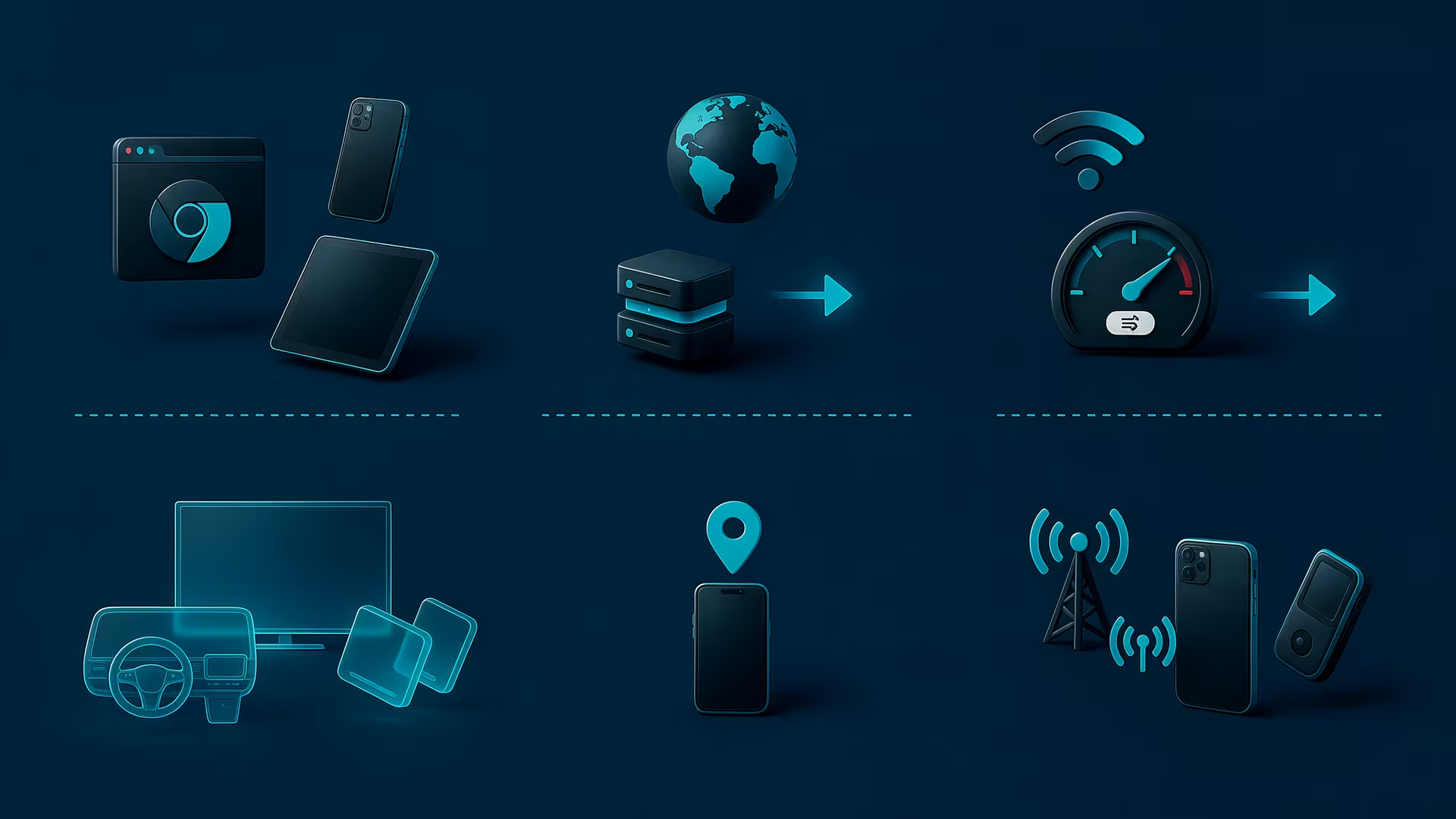
HeadSpin’s global device infrastructure provides access to real devices across 50+ global locations, including Android and iOS devices, tablets, Smart TVs, streaming devices, gaming consoles, and industry-specific hardware such as POS and Zebra devices.
This matters because GUI issues are often context-specific. A screen may look fine on a flagship phone but break on a lower-end Android device. A web flow may work on Chrome desktop but fail on Safari mobile. A media app may behave differently on Smart TVs compared to mobile phones. Real device testing gives teams a clearer view of how the interface performs for actual users.
Why Choose HeadSpin for GUI Testing
HeadSpin helps teams test web, mobile, OTT, and connected experiences on real devices in real-world conditions. For GUI testing, this means teams can validate how applications look, respond, and perform across real devices, browsers, networks, locations, and operating systems.
With HeadSpin, teams can strengthen GUI testing through:
Real Device Coverage
HeadSpin enables testing on real SIM-enabled mobile devices, browsers, OTT media devices, Smart TVs, and more across 50+ global locations. This helps teams validate GUI behavior in environments closer to actual user conditions.
Manual and Automated Testing
Teams can use HeadSpin to support both manual exploration and automated GUI testing. This allows QA teams to inspect user flows manually where needed and automate repetitive GUI regression tests for speed and consistency.
Cross-Device and Cross-Platform Validation
HeadSpin supports testing across diverse device configurations, OS versions, and network conditions. This helps teams catch layout shifts, broken flows, rendering issues, and device-specific problems before users experience them.
Performance Visibility During GUI Tests
A GUI may look correct but still deliver a poor experience if screens load slowly, buttons lag, or content appears late. HeadSpin provides session recordings, app, device, and network KPIs, Waterfall UI, Grafana dashboards, Issue Cards, and regression insights to help teams correlate interface issues with performance bottlenecks.
Real-World Network and Location Testing
HeadSpin helps teams test how GUI behavior changes across locations, carriers, and network conditions. This is important for mobile apps, streaming apps, banking apps, retail apps, travel apps, and any application where performance and interface reliability vary by region or connectivity.
Faster Debugging and Better Release Confidence
By combining real-device access, session data, logs, performance KPIs, and visual evidence, HeadSpin helps teams move from “something broke” to “this is where and why it broke.” That makes GUI testing more actionable for QA, product, design, and engineering teams.
Conclusion
GUI testing is more than checking whether an application looks good. It validates whether the interface works, responds, adapts, and supports users across real devices, browsers, platforms, and network conditions.
A strong GUI testing strategy should cover functionality, visual accuracy, usability, accessibility, compatibility, responsiveness, and real-world performance. Manual testing helps teams catch experience issues, while automated GUI testing helps scale regression coverage across releases.
But the real test is not whether the GUI works in a controlled setup. The real test is whether it works for users on actual devices, in actual locations, under actual network conditions.
That is where HeadSpin adds value. With real device infrastructure, global coverage, automation support, performance insights, and real-world testing environments, HeadSpin helps teams validate GUI quality with greater accuracy and confidence before release.
FAQs
Q1. Why is GUI testing important?
Ans: GUI testing helps ensure users have a smooth and consistent experience. It identifies visual issues, broken interactions, layout inconsistencies, and usability problems before the application reaches production.
Q2. What is the difference between GUI testing and UI testing?
Ans: GUI testing mainly focuses on graphical elements such as buttons, icons, menus, and layouts. UI testing is broader and may include user workflows, responsiveness, and overall user interaction behavior.
Q3. Can GUI testing be automated?
Ans: Yes. GUI testing can be automated using frameworks like Selenium, Appium, and Playwright. Automated GUI testing helps teams execute repetitive regression tests faster and more consistently.






-1280X720-Final-2.jpg)